> For the complete documentation index, see [llms.txt](https://docs.coti.io/coti-documentation/llms.txt). Markdown versions of documentation pages are available by appending `.md` to page URLs; this page is available as [Markdown](https://docs.coti.io/coti-documentation/build-on-coti/guides/setting-up-coti-snap-with-your-metamask-wallet.md).
# Setting up COTI Snap with your MetaMask wallet
Last updated: May 2026\
Estimated time: 5 minutes\
Requirements: MetaMask (desktop), COTI Mainnet connection
\
Stage 1 — Install the COTI Snap
#### What you’ll need
* MetaMask wallet (desktop browser extension)
* Access to the official COTI Snap install link
Mobile browsers are not supported yet.
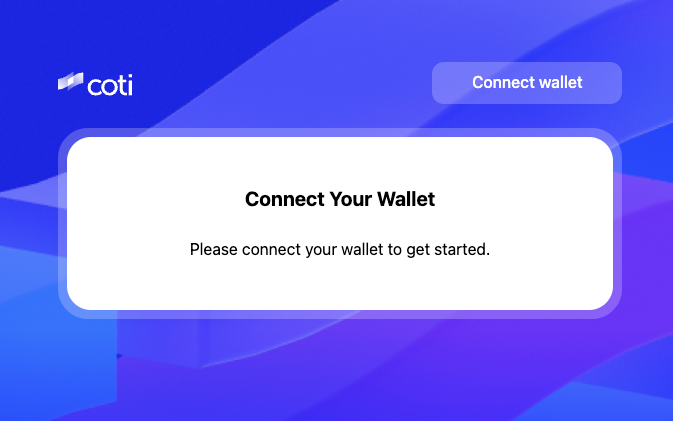
#### Step 1 — Connect your wallet
1. Navigate to metamask.coti.io.
2. Click Connect Wallet.
3. MetaMask will open a prompt asking:
This step allows MetaMask to enable private token support through the Snap.
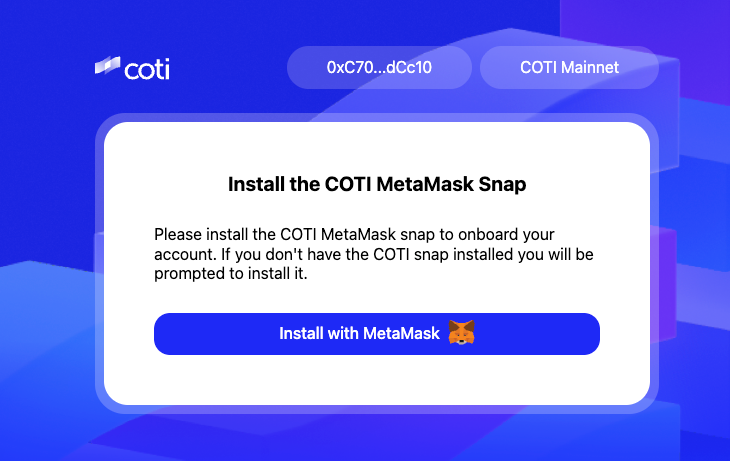
#### Step 2 — Install the COTI Snap
1. Click Install COTI MetaMask Snap.
2. If you don’t already have the Snap installed, MetaMask will prompt you automatically.
3. Approve the installation.\
\\
#### Step 3 — Approve connection
1. MetaMask will ask for permission to connect the Snap to your wallet.
2. Click Approve when prompted.
#### Step 4 — Choose your account and connect
Select the account you wish to use with the Snap (recommended: your COTI Mainnet account) and click Connect.
You’ve successfully added the COTI Snap to MetaMask!
### Stage 2 — View your COTI Private Token balances
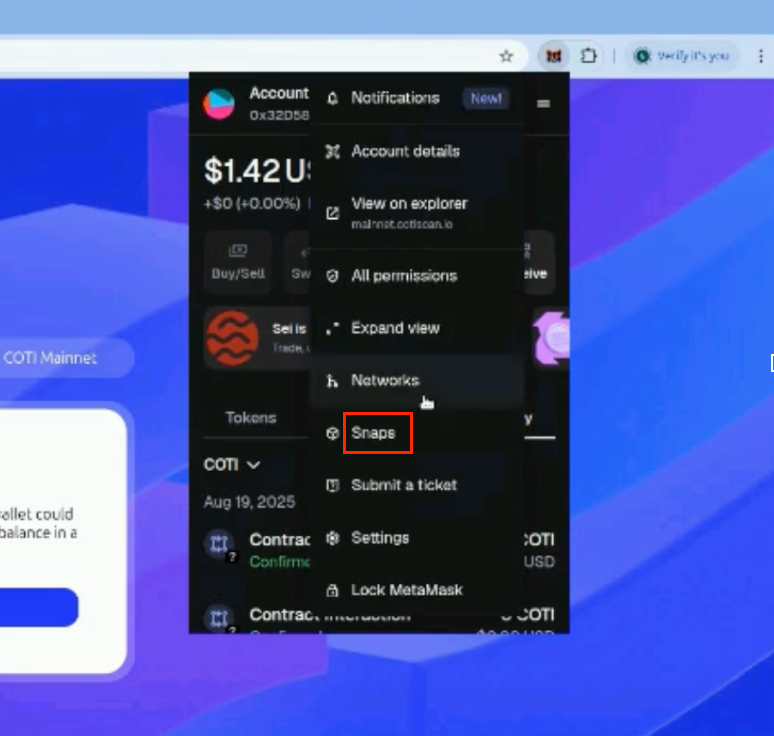
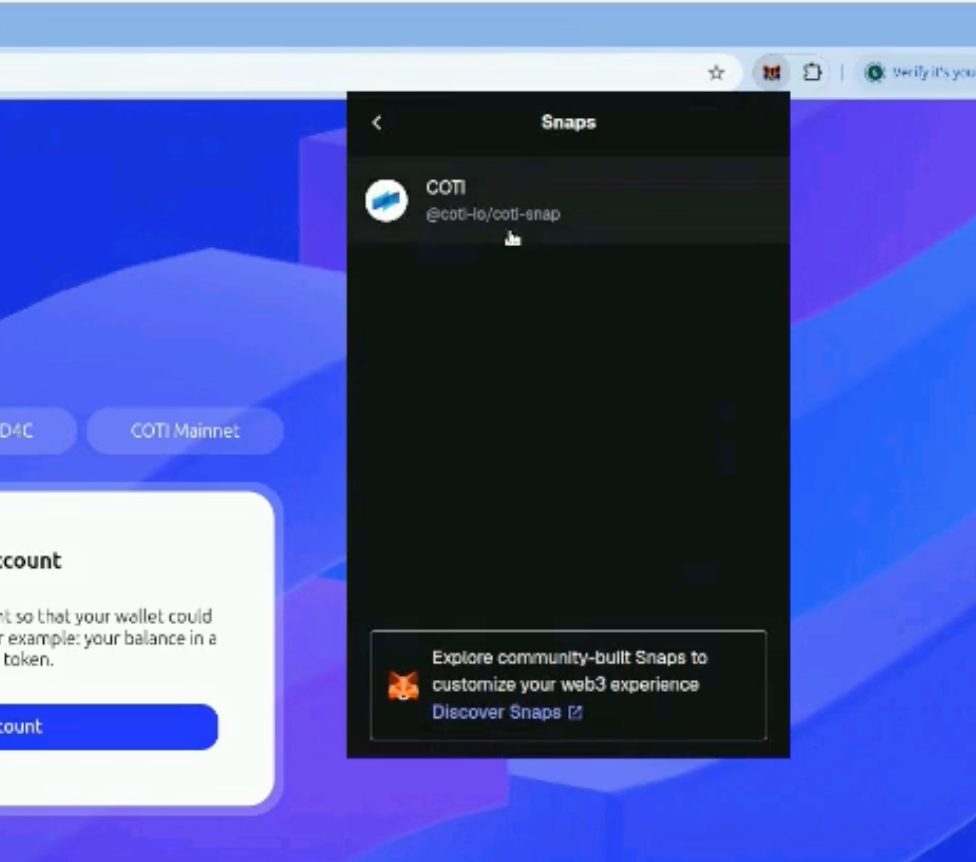
#### Step 5 — Confirm Snap installation
1. In MetaMask, click your Profile icon → Settings → Snaps.
2. You should now see COTI Snap listed and active.\\
\\
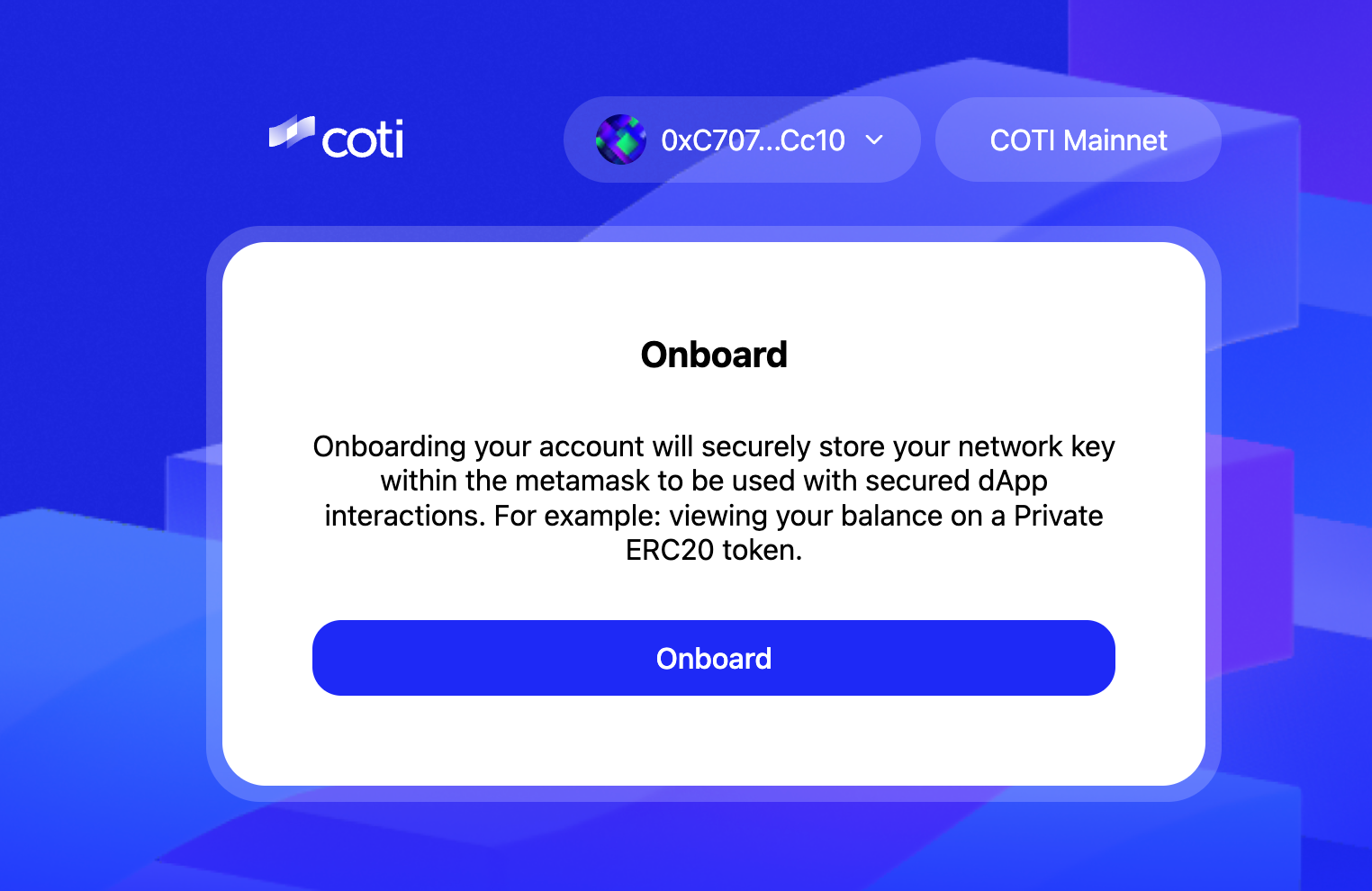
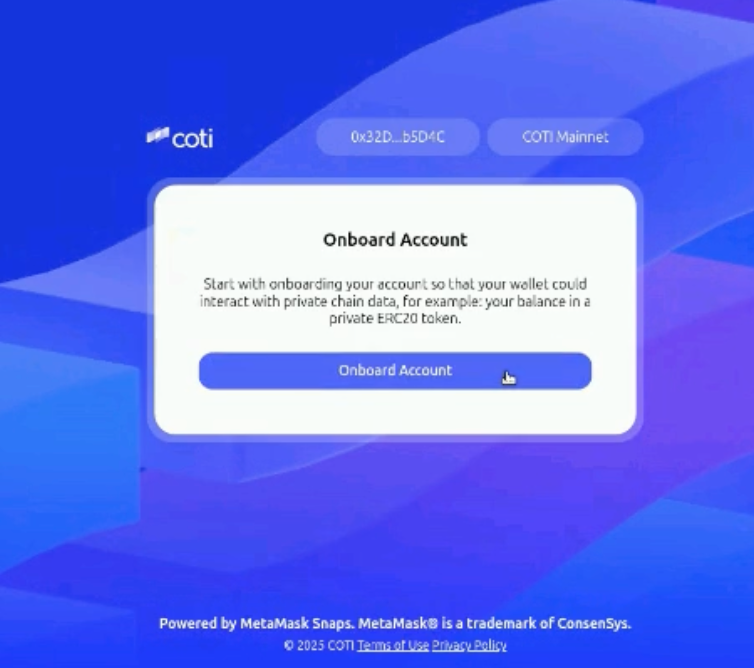
#### Step 6 — Onboard your account
1. In MetaMask, click Onboard Account.
2. MetaMask will open a popup to register your account with the Snap.
3. Click Confirm when prompted.\
\
\\
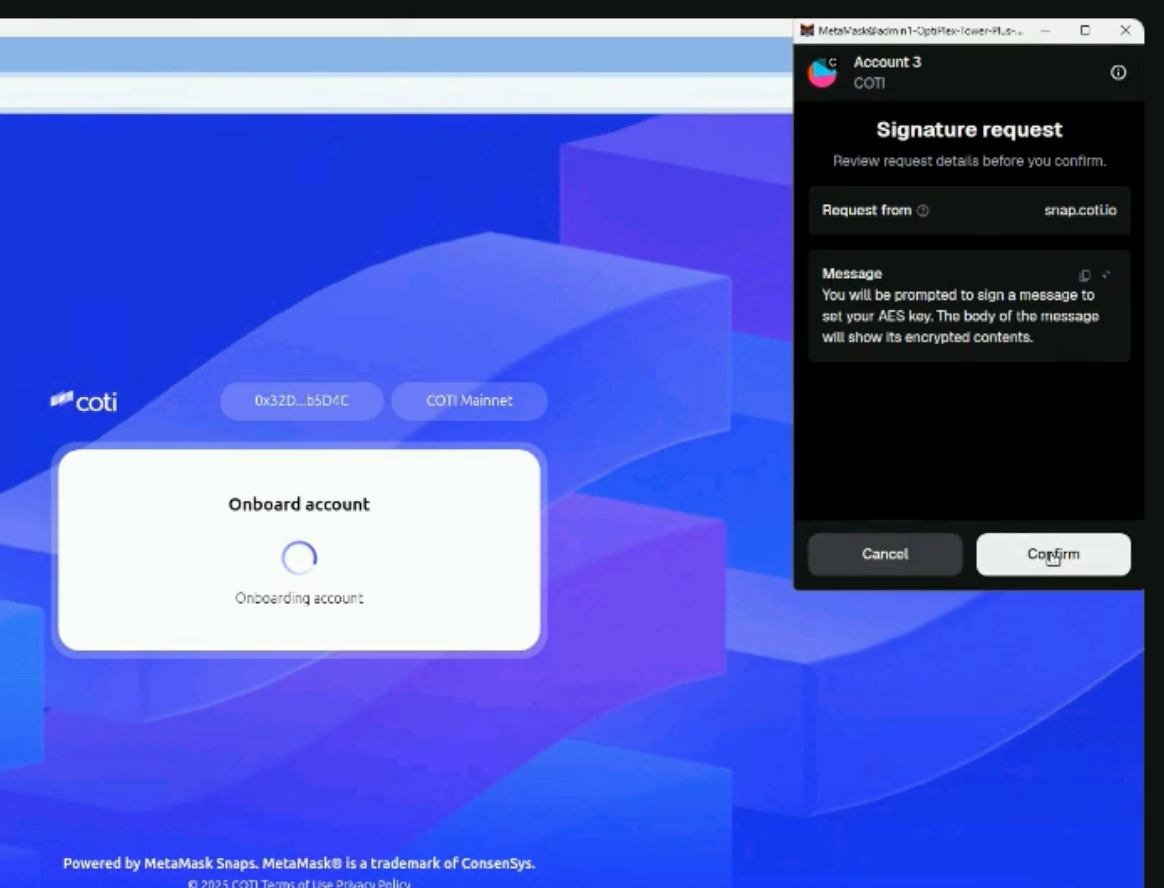
#### Step 7 — Sign and authorize
MetaMask will display a Signature Request popup.\
Click Confirm to authorize the onboarding.\
The message may appear encrypted — this is expected.\
This simply verifies your ownership and uses a small amount of COTI for gas.\
\\
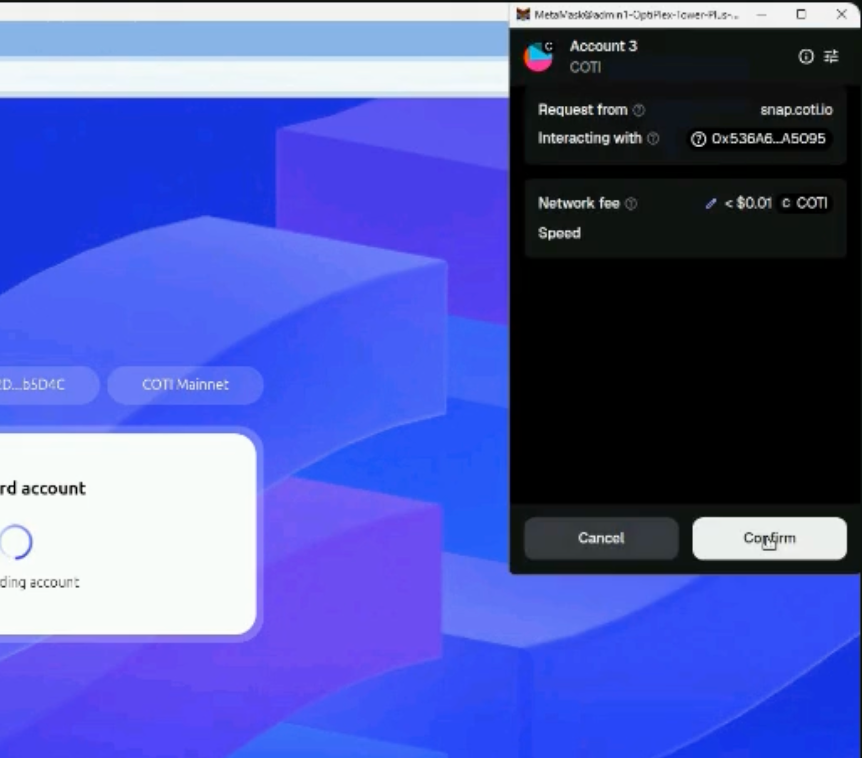
#### Step 8 — Approve the connection
1. MetaMask will display the request from snap.coti.io on the COTI Mainnet.
2. Click Confirm to proceed.
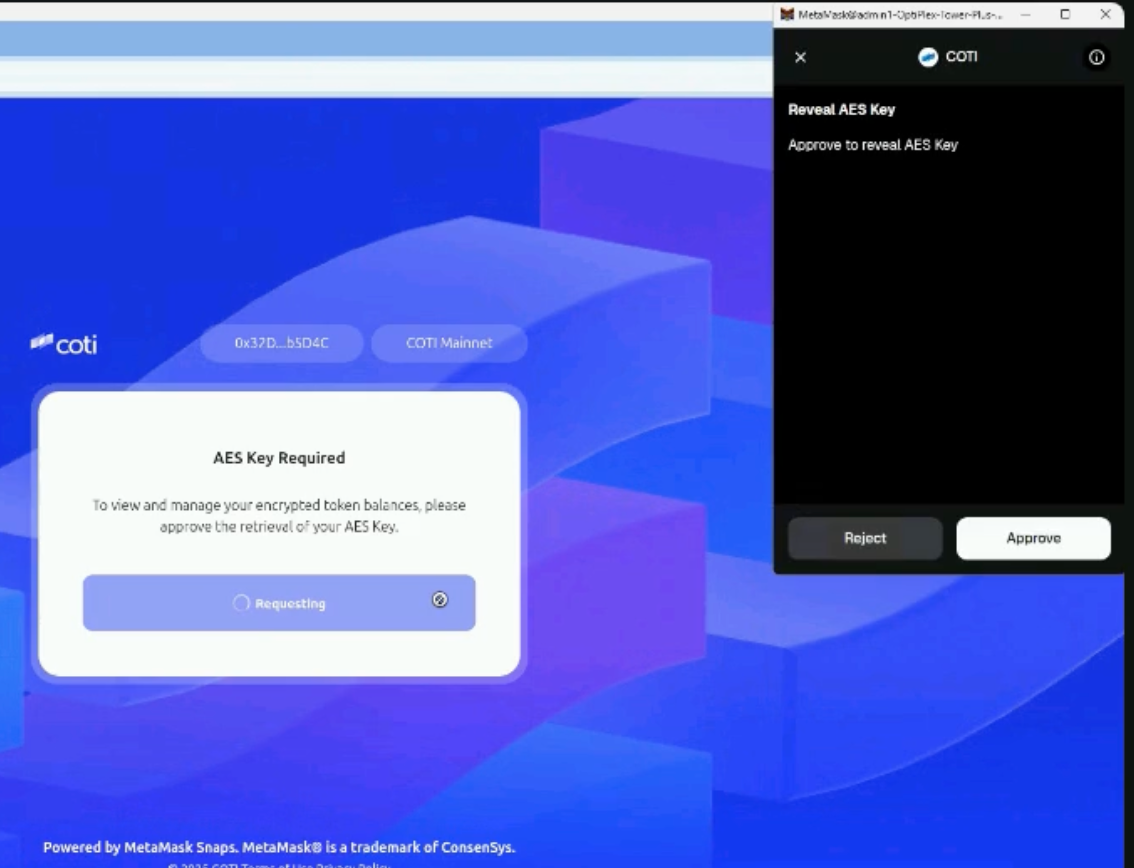
#### Step 9 — Grant AES key access
1. The COTI app will now request access to your AES Key — used for decrypting your private balances.
2. Click Request, and when MetaMask pops up, choose Approve.
Without this step, you can hold private tokens, but you won’t be able to view balances.
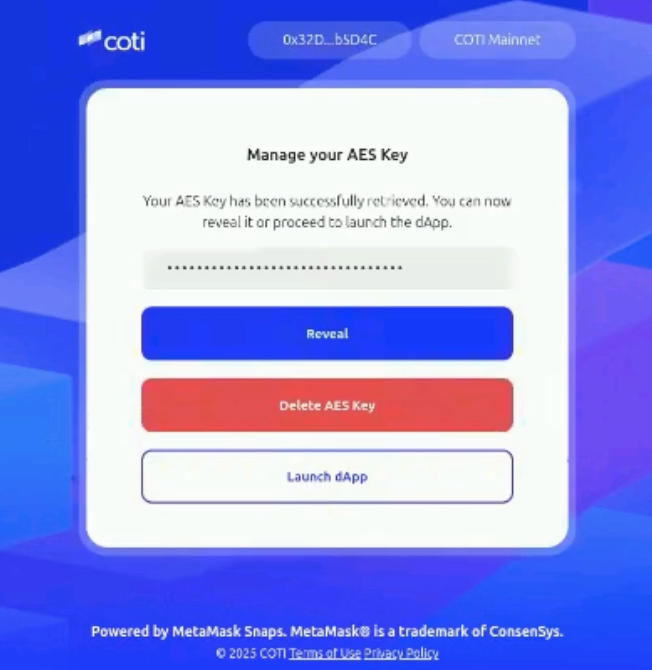
#### Step 10 — Launch the dApp
Click Launch dApp to open the COTI Snap application and view your private token balances.\\
You’ve completed Stage 2 — your COTI Snap is live and connected!
### Stage 3 — Send and Receive Private Tokens
Private ERC-20 tokens on COTI are not standard ERC-20s — they include encrypted data and special logic.\
Some wallet or explorer behaviors may differ from standard tokens.
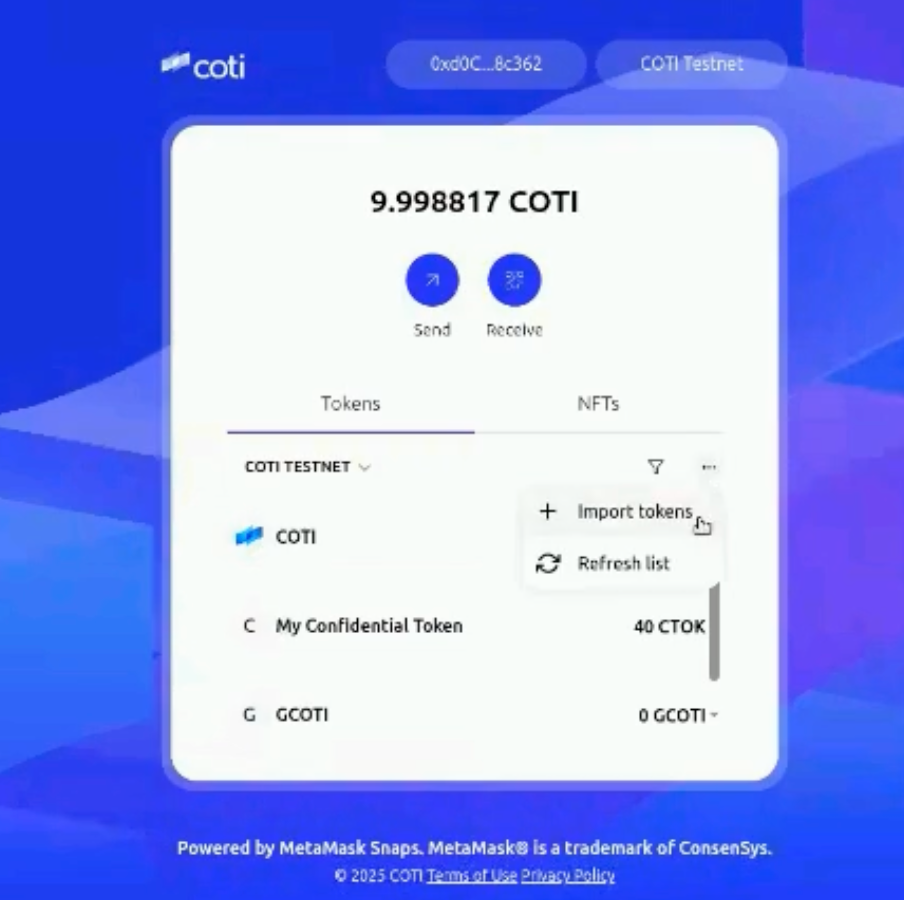
#### Step 13 — Import your private token
1. In MetaMask Snap, click Import Tokens.
2. Paste the private token’s contract address
3. Click Next → Import and confirm in MetaMask.\\
#### Why MetaMask can show a very large “balance” for private ERC-20 tokens
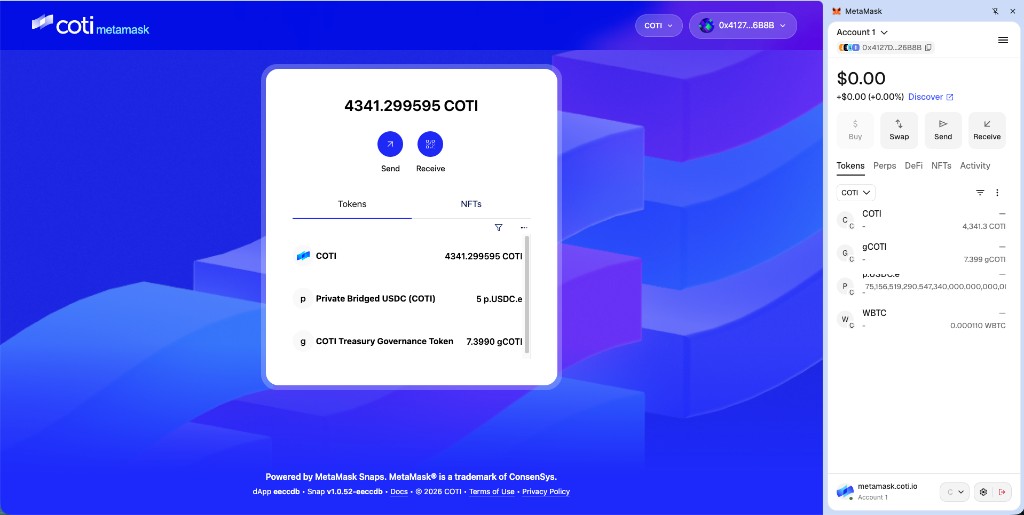
Private ERC-20 (p.ERC-20) tokens are **interface-compatible** with standard ERC-20 (for example, MetaMask can import them using the contract address). The **on-chain `balanceOf` value is not a human-readable token amount** in the same way as for a normal ERC-20: it encodes **private balance data** (for example, ciphertext or other packed representation).
The main MetaMask extension still treats `balanceOf` like a plain decimal integer. When that value is actually **encrypted or encoded data** (often a large hex-like payload), MetaMask **interprets those bytes as one huge decimal number**. That is why you may see an extremely long number next to the token in the default MetaMask **Assets** list — it is **not** your real spendable balance shown as digits; it is that encoded value displayed as if it were a normal balance.
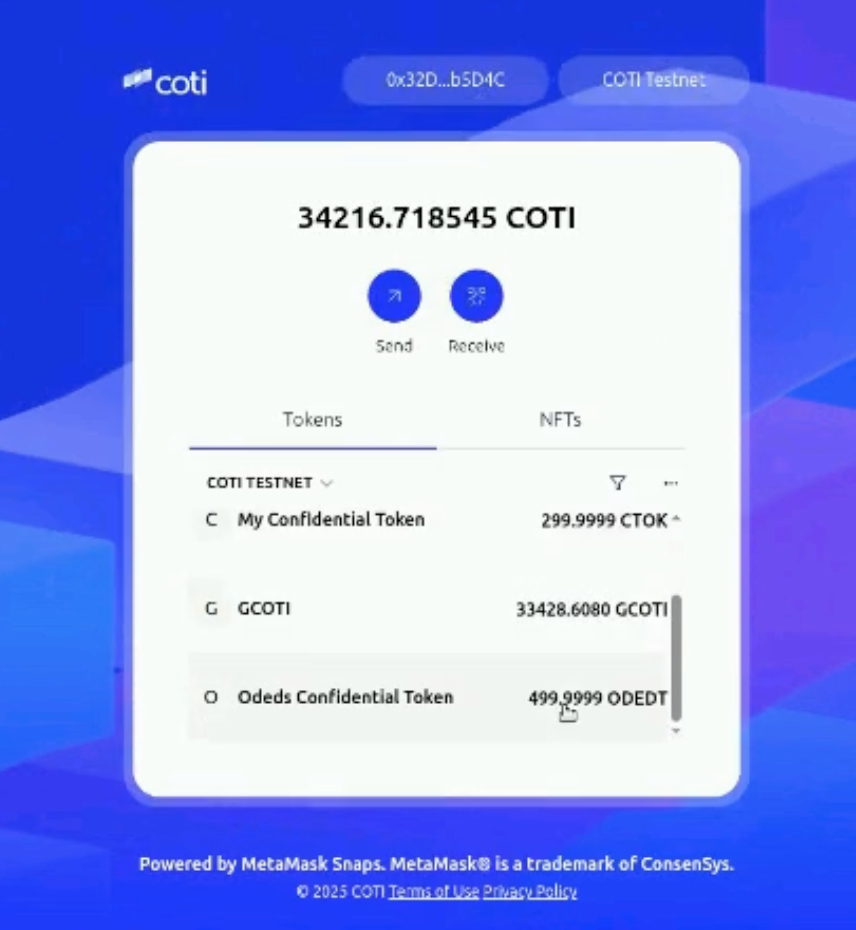
**Where to see the real private balance:** use the **COTI Snap dApp** (for example via [metamask.coti.io](https://metamask.coti.io)), where the Snap decrypts and displays the correct amount (for example **5 p.USDC.e** in the privacy UI vs. a nonsensical long number in the extension).
COTI Snap dApp (left) shows the decrypted private balance; the MetaMask extension (right) may show a huge number for the same token because it reads balanceOf as a plain ERC-20 amount.
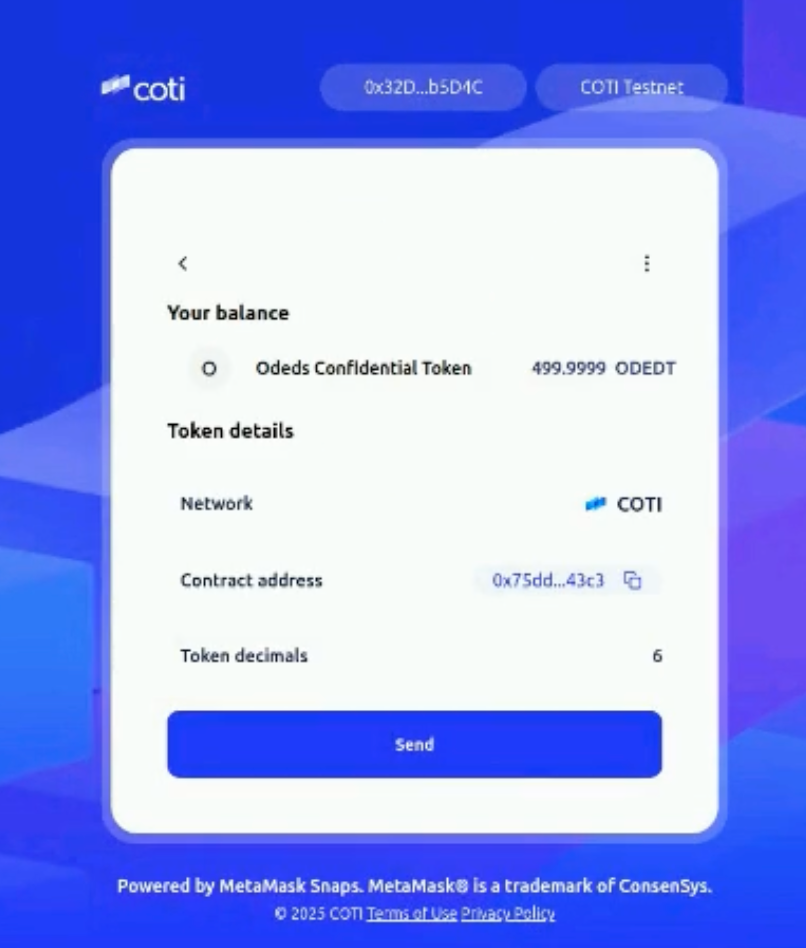
#### Step 14 — View token details
In the **COTI Snap dApp**, open the token to see details and the **decrypted** balance.\
The main MetaMask **Assets** list may still show a misleading huge number for private tokens (see the note above); rely on the Snap UI for the amount you can actually use.\\
#### Step 15 — Send your private token
1. Click Send Token in the COTI dApp or Snap interface.
2. Enter the recipient’s address and confirm.
3. Approve the request in MetaMask.
The transaction is now live on-chain — encrypted and private.
---
# Agent Instructions
This documentation is published with GitBook. GitBook is the documentation platform designed so that both humans and AI agents can read, navigate, and reason over technical content effectively. Learn more at gitbook.com.
## Querying This Documentation
If you need additional information that is not directly available in this page, you can query the documentation dynamically by asking a question.
Perform an HTTP GET request on the current page URL with the `ask` query parameter, and the optional `goal` query parameter:
```
GET https://docs.coti.io/coti-documentation/build-on-coti/guides/setting-up-coti-snap-with-your-metamask-wallet.md?ask=&goal=
```
`ask` is the immediate question: it should be specific, self-contained, and written in natural language.
`goal` is optional and describes the broader end goal you are ultimately trying to accomplish on behalf of the user. GitBook uses it to tailor the answer towards what is most useful for that goal.
The response will contain a direct answer to the question and relevant excerpts and sources from the documentation.
Use this mechanism when the answer is not explicitly present in the current page, you need clarification or additional context, or you want to retrieve related documentation sections.